Losing a world that's months old due to an update is one of the worst things that can happen in Minecraft. It can almost always be avoided with a five minute backup. This guide explains when there's a risk and how to update the APK while keeping your worlds safe.
Minecraft Bedrock APK
Table of contents
When are worlds lost?
In current versions, worlds are saved within the application data. This has a clear consequence:
- Update over: If the new APK has the same signature as the installed one, Android updates and everything is preserved.
- Uninstall first: If you have to uninstall, Android deletes the app's data and the worlds associated with it.
- Clear data: Clearing Minecraft data in your phone's settings also deletes it
The typical scenario for loss is this: you have Minecraft from Google Play, you try to install an APK from a different source, Android responds "App not installed," and you uninstall it without thinking. That's why the first step is always to export.
Export your worlds
- Open Minecraft and go to Play.
- Tap the pencil icon next to the world you want to save.
- Scroll down to the bottom of the world settings and tap Export world.
- Choose where to save the .mcworld file, for example in Downloads.
- Repeat this process for each important world and copy the files to the cloud or a computer.
A .mcworld file saves the entire world: buildings, inventory, and settings. It's the most reliable backup on your phone.
Update the APK
- Download the new APK, now the v1.26.70.29 of 887 MB, from our download page.
- Open it and tap Update or Install.
- If Android accepts it, wait for it to finish and open the game: your worlds will still be there.
- If you see "App not installed", check that you have already exported everything, uninstall the previous version and install the new APK.
Reclaim your worlds
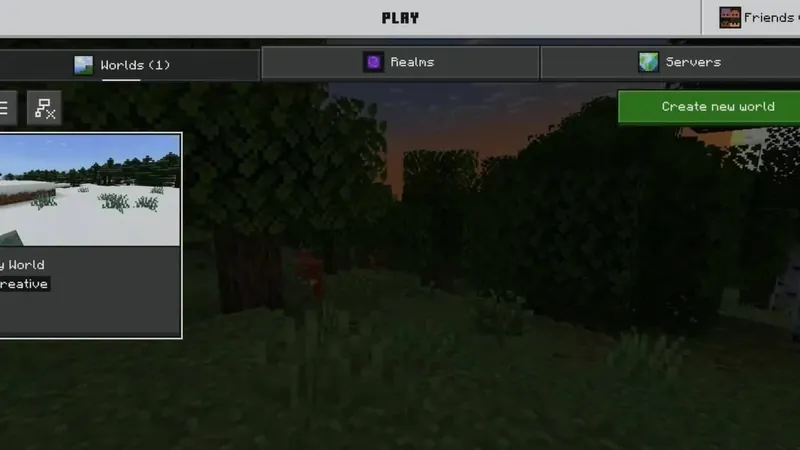
Open your phone's file manager, find each .mcworld file, and tap it. Android will ask you which app to use to open it: choose Minecraft. The game will import the world and add it to your list in a few seconds.
Marketplace purchases aren't stored on your phone, but in your Microsoft account. Sign in and download them again from your library.
Be careful when reverting to a previous version
An open world in a newer version might not open in an older one because the format changes. If you're testing a preview version or a new build, do so with a copy of the world, not the original.
Frequently Asked Questions
Are the worlds of Realms in danger?
No. Realms live on Mojang 's servers and don't depend on your phone.
Can I transfer my worlds to another phone?
Yes. Export the .mcworld, send it to the other phone, and open it with Minecraft.
Will I lose my skin if I reinstall?
Marketplace skins reappear when you log in. Custom image skins will need to be uploaded again.
What about the texture packs I imported?
The packages within an exported world travel with it. Those you imported separately must be reopened.